

Fahmeena writes clear and practical guides covering technology, apps, AI tools, computers, gadgets and emerging digital trends.
View Author Profile →
Sameena reviews technology and digital content for clarity, factual presentation, readability, consistency and reader usefulness.
View Reviewer Profile →If you are a mac user, chances are that you’ll soon come to learn that there is in fact a great deal that can be achieved by simply using a few shortcut keys, saving you literally hours each day. No matter if you are student, professional, creative or developer-making use of Mac Keyboard Shortcuts will not only save you time but improve your work flow!
Instead of moving your cursor to an application to complete a command, you can actually do it on your keyboard and it will only take a fraction of a second. Copying text, changing programs, taking screenshots, managing window – you name it, there are dozens, if not hundreds of macOS Keyboard Shortcuts that are ready to save you time.
Table of Contents
What Are Mac Keyboard Shortcuts?
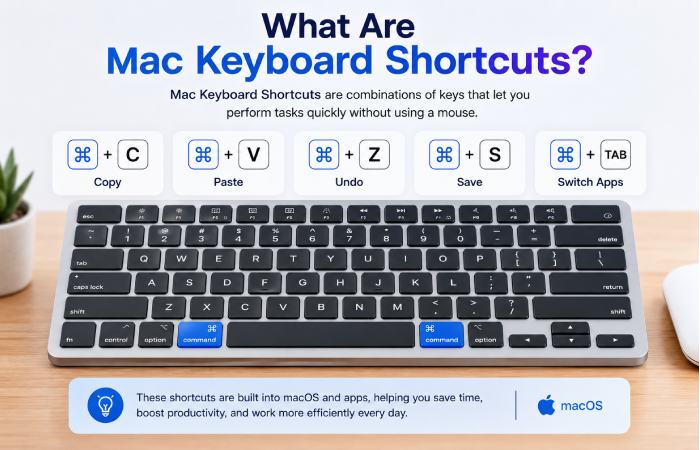
The Mac Keyboard Shortcut is merely an array of keys which when simultaneously pressed will trigger off a command within macOS or applications. The action may be instructed using key commands rather than through the menu.
For example:
- Command + C copies selected content.
- Command + V pastes copied content.
- Command + S saves a document.
Why Mac Keyboard Shortcuts Matter
Repetitive tasks occur a lot on modern computers. From launching programs, to copying and pasting, opening and closing tabs, and managing files, all of this takes up time. Even learning ten commonly used shortcuts can significantly improve productivity over time.
Keyboard shortcuts help by:
| Benefit | Explanation |
| Faster navigation | Reduces mouse movement |
| Increased productivity | Completes tasks more quickly |
| Better workflow | Keeps hands on keyboard |
| Reduced interruptions | Minimises context switching |
| Professional efficiency | Useful in office and creative work |
Understanding the Mac Keyboard Keys
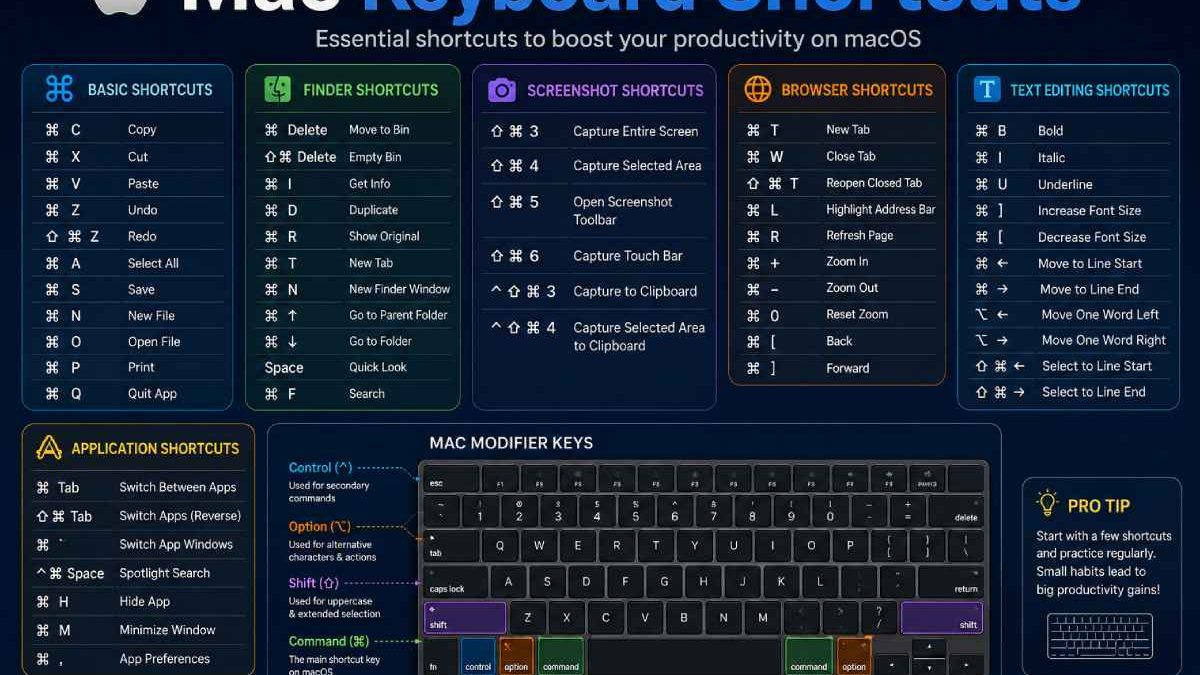
It is good to know the main modifier keys for an Apple keyboard before you study the shortcuts:
| Key | Symbol | Function |
| Command | ⌘ | Main shortcut key |
| Option | ⌥ | Alternative commands |
| Control | ^ | Secondary control functions |
| Shift | ⇧ | Capitalization and modified actions |
| Function | fn | Accesses additional keyboard features |
Mac Keyboard Shortcuts Every user should know
While Mac computers commonly use Command + Shift + Z to redo an action, the shortcut can vary across operating systems and applications. For a broader overview of redo commands, see this guide to the redo shortcut key in a computer.
These are just some of the most commonly used Mac keyboard shortcuts. These shortcuts work across many macOS applications.
General macOS Shortcuts
| Shortcut | Function |
| Command + C | Copy |
| Command + X | Cut |
| Command + V | Paste |
| Command + Z | Undo |
| Shift + Command + Z | Redo |
| Command + A | Select All |
| Command + F | Find |
| Command + P | |
| Command + S | Save |
| Command + N | New Document or Window |
File Management Shortcuts
Managing files efficiently is one of the biggest advantages of learning keyboard shortcuts. These shortcuts are particularly useful when working within Finder.
| Shortcut | Action |
| Command + Delete | Move file to Bin |
| Shift + Command + Delete | Empty Bin |
| Command + I | Get Info |
| Command + D | Duplicate File |
| Command + O | Open Selected Item |
| Command + R | Show Original File |
| Space Bar | Quick Look Preview |
Screenshot Shortcuts on macOS
Taking screenshots is a common requirement for students, professionals, and support teams.
| Shortcut | Function |
| Shift + Command + 3 | Capture entire screen |
| Shift + Command + 4 | Capture selected area |
| Shift + Command + 5 | Open screenshot toolbar |
| Shift + Command + 6 | Capture Touch Bar |
The screenshot toolbar introduced in recent macOS versions offers additional recording and capture options.
Browser Productivity Shortcuts
Undo reverses your last action, while Redo restores an action you previously undid. If you’re new to these commands, learn the basic redo shortcut key and how to use it in everyday computer tasks.
Whether you use Safari, Chrome, or another browser, these shortcuts can improve browsing efficiency.
| Shortcut | Action |
| Command + T | New Tab |
| Command + W | Close Tab |
| Command + Shift + T | Reopen Closed Tab |
| Command + L | Highlight Address Bar |
| Command + R | Refresh Page |
| Command + Plus (+) | Zoom In |
| Command + Minus (-) | Zoom Out |
These commands are useful for research, content creation, and everyday web browsing.
Mac Keyboard Shortcuts for Text Editing
Writers, students, and office professionals often spend significant time editing documents.
| Shortcut | Purpose |
| Command + B | Bold Text |
| Command + I | Italic Text |
| Command + U | Underline Text |
| Command + Left Arrow | Move to beginning of line |
| Command + Right Arrow | Move to end of line |
| Option + Left Arrow | Move one word left |
| Option + Right Arrow | Move one word right |
These shortcuts help reduce reliance on the mouse during document editing.
Workflow: Effective learning of mac keyboard shortcuts
Instead of memorizing a large number of shortcuts at once, it is more effective to study gradually.
Step 1: Master Basic Editing
Learn:
- Copy
- Paste
- Undo
- Save
- Select All
Step 2: Learn Navigation
Focus on:
- Switching applications
- Opening Finder
- Browser tab management
Step 3: Learn Screenshots
Master screenshot shortcuts for work and communication.
Step 4: Learn Advanced Productivity Commands
Add:
- Window management
- Finder shortcuts
- Accessibility commands
By learning shortcuts in stages, users can build lasting habits without becoming overwhelmed.
Mac Keyboard Shortcuts vs Mouse Navigation
The table below highlights key differences.
| Feature | Keyboard Shortcuts | Mouse Navigation |
| Speed | Faster | Slower |
| Accuracy | High | Moderate |
| Learning Curve | Requires practice | Minimal |
| Productivity | Higher | Lower |
| Repetitive Tasks | Excellent | Less efficient |
| Multitasking | Better | Average |
In occasional use, the mouse is convenient. The computer addict often finds the keyboard to be very beneficial.
Expectations: Will Keyboard Shortcuts Make You Faster Immediately?
Often users are expecting instant increased productivity gains, when there is actually a small amount of acclimatization needed.
During the first few days, you may occasionally forget key combinations and revert to mouse usage. After consistent practice, however, many actions become automatic.
Typical expectations include:
| Time Period | Expected Improvement |
| First Week | Familiarity develops |
| Two Weeks | Noticeable speed gains |
| One Month | Shortcuts become habitual |
| Three Months | Significant workflow efficiency |
The biggest benefit comes from consistent use rather than memorizing large lists of commands.
Advantages and Limitations of Mac Keyboard Shortcuts
Advantages
Pros
- Improves productivity
- Reduces repetitive clicking
- Speeds up navigation
- Works across many applications
- Supports accessibility
Limitations
Cons
- Requires memorisation
- Some shortcuts vary by application
- New users may feel overwhelmed
- Occasional shortcut conflicts occur
Common Mac Keyboard Shortcuts by User Type
Keyboard shortcuts differ between Mac and Windows computers. If you also use a Windows PC, check the guide to the redo shortcut key in Windows to learn the corresponding command and how it works in common applications.
| User Type | Most Useful Shortcuts |
| Students | Copy, Paste, Screenshot, Find |
| Writers | Save, Undo, Text Navigation |
| Designers | Screenshot, Quick Look, App Switching |
| Developers | Terminal, Tab Management, Window Switching |
| Office Professionals | Email, Document Editing, Search |
Different professions naturally rely on different shortcut combinations.
Conclusion
Mastering the shortcuts on the Mac keyboard is arguably the single most impactful step that you can take to improve your efficiency when using the Mac. This would bypass going through system menus and the mouse click.
Begin with the most common such as copy, paste, save and undo commands. Once you’ve become proficient with these add in file shortcuts, shortcuts for moving around in your browser, and taking screenshots of parts or all of your screen. Eventually, they’ll become instinct.
Fahmeena Begum is a technology writer at Digital Tech Book with 3+ years of experience. Her work covers apps, AI tools, computers, gadgets, smart technology and practical digital guides.
View Author Profile →Sameena Begum is a technology and digital content reviewer with 8 years of experience. Her review work focuses on clarity, factual presentation, readability and editorial consistency.
View Reviewer Profile →