

Fahmeena writes clear and practical guides covering technology, apps, AI tools, computers, gadgets and emerging digital trends.
View Author Profile →
Sameena reviews technology and digital content for clarity, factual presentation, readability, consistency and reader usefulness.
View Reviewer Profile →Table of Contents
Introduction
Windows keyboard shortcuts represent one of the simplest methods available to make you more efficient when using a computer. It doesn’t matter what you use your PC for – office work, studying, general browsing, content creation or even mundane daily chores. Keyboard shortcuts can greatly speed up redundant processes and increase efficiency.
Most people know only a few shortcuts, for example Ctrl + C or Ctrl + V, but modern Windows includes thousands of inbuilt shortcuts which provide assistance in multi-tasking, screen capture, accessibility, File Explorer operations, browser navigation and general Windows settings. Even learning only a handful of these can greatly speed up your workflow and greatly increase reliance on the mouse.
This guide will help you to learn what the best Windows keyboard shortcuts are, how they work and how to apply them where they can be most useful, while also setting achievable expectations as to what benefits can realistically be gained in everyday computer usage. For more update visit our website.
What are Windows Shortcut Keys?
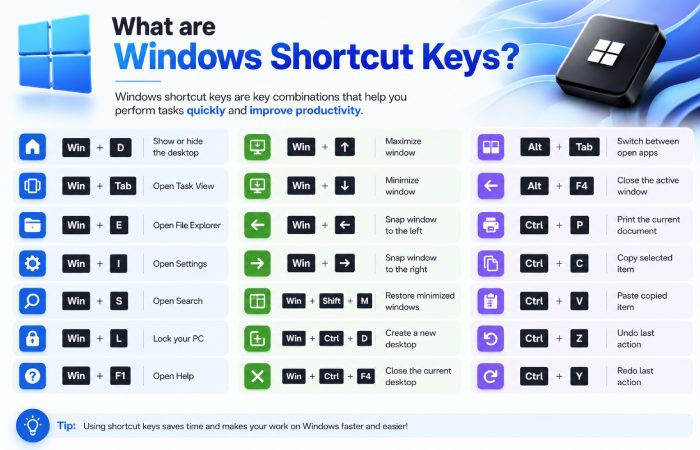
Windows Shortcut keys are key combinations that are pressed so as to achieve a specific task immediately. It is used to allow the user to access menus very quickly without having to access the menus.
For example:
| Shortcut | Function |
| Ctrl + C | Copy selected item |
| Ctrl + V | Paste copied item |
| Alt + Tab | Switch between applications |
| Windows + D | Show desktop |
All these shortcuts have been built into the Windows operating system and function in many applications.
Why Windows Shortcut Keys Matter
While Windows users commonly use Ctrl + Y or Ctrl + Shift + Z to redo an action, Mac users typically use Command + Shift + Z in many applications. If you use an Apple computer, learn more about the redo shortcut key on Mac to repeat actions efficiently.
Keyboard shortcuts-use them to work faster and avoid switching between your keyboard and mouse unnecessarily. They’re particularly good for:
| User Type | Benefit |
| Office workers | Faster document handling |
| Students | Improved research workflow |
| Programmers | Efficient navigation |
| Designers | Quicker software actions |
| General users | Easier multitasking |
While shortcuts do not automatically make someone highly productive overnight, regular use can gradually reduce task completion time during daily computer use.
Most Essential Windows Shortcut Keys
If you are new to keyboard shortcuts, start by understanding how the undo and redo commands work together. This basic guide to the redo shortcut key explains the fundamentals and helps beginners use these commands confidently.
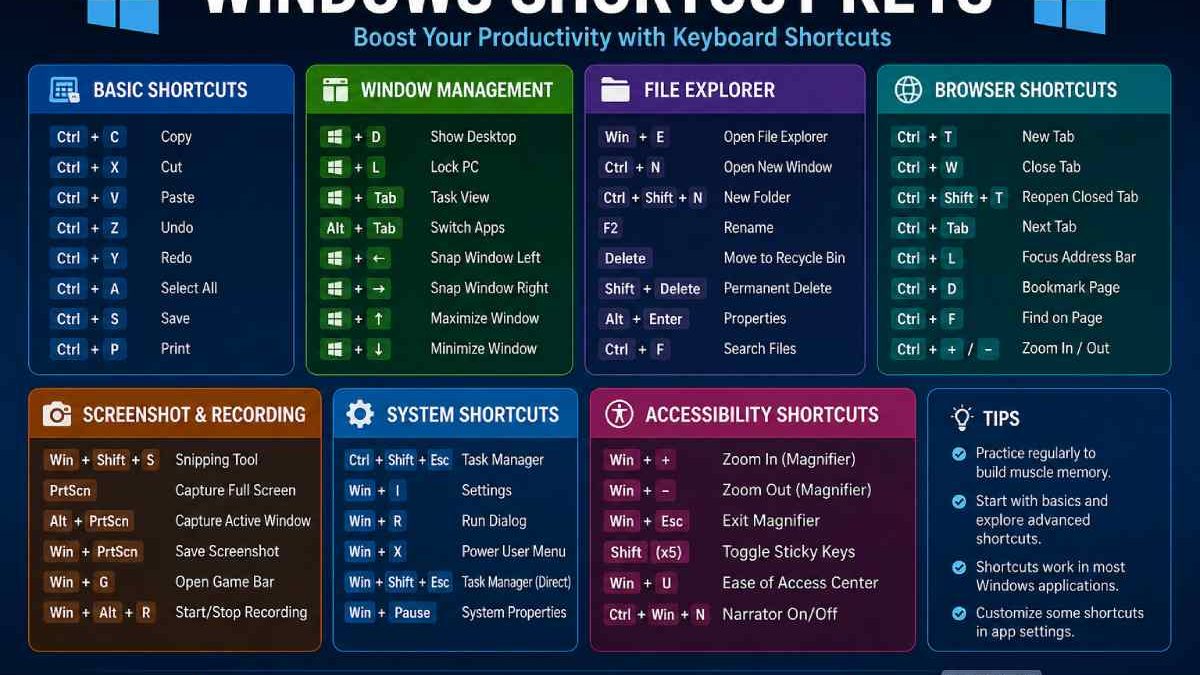
Basic Editing Shortcuts
These are the most commonly used shortcuts across Windows applications.
| Shortcut Key | Purpose |
| Ctrl + C | Copy |
| Ctrl + X | Cut |
| Ctrl + V | Paste |
| Ctrl + Z | Undo |
| Ctrl + Y | Redo |
| Ctrl + A | Select all |
| Ctrl + S | Save file |
| Ctrl + P | Print document |
These shortcuts work in most programs including browsers, word processors, and file explorers.
Window Management Shortcuts
Modern Windows versions include powerful multitasking controls.
| Shortcut Key | Function |
| Windows + D | Minimise all windows |
| Windows + L | Lock computer |
| Windows + Tab | Open task view |
| Alt + Tab | Switch between open apps |
| Windows + Left Arrow | Snap window left |
| Windows + Right Arrow | Snap window right |
| Windows + Up Arrow | Maximise window |
| Windows + Down Arrow | Minimise window |
These shortcuts are particularly useful for dual-monitor users and multitasking workflows.
File Explorer Shortcut Keys
File management becomes faster when using keyboard combinations.
| Shortcut Key | Function |
| Windows + E | Open File Explorer |
| Ctrl + N | Open new window |
| Ctrl + Shift + N | Create new folder |
| F2 | Rename selected file |
| Delete | Move item to recycle bin |
| Shift + Delete | Permanently delete item |
| Alt + Enter | Open properties |
These commands are frequently used in office environments and educational settings.
Browser Shortcut Keys
Most modern browsers support similar keyboard commands.
| Shortcut Key | Function |
| Ctrl + T | Open new tab |
| Ctrl + W | Close current tab |
| Ctrl + Shift + T | Restore closed tab |
| Ctrl + Tab | Switch tabs |
| Ctrl + L | Highlight address bar |
| Ctrl + D | Bookmark page |
| Ctrl + F | Find text on page |
Browser shortcuts are especially useful for research, content writing, and online learning.
Screenshot and Screen Recording Shortcuts
Windows includes built-in screenshot features.
| Shortcut Key | Function |
| Windows + Shift + S | Open snipping tool |
| Print Screen | Capture full screen |
| Alt + Print Screen | Capture active window |
| Windows + Print Screen | Save screenshot automatically |
| Windows + G | Open Xbox Game Bar |
These features help users capture tutorials, presentations, and troubleshooting information quickly.
Accessibility Shortcut Keys
Windows also provides accessibility-focused keyboard controls.
| Shortcut Key | Function |
| Windows + Plus (+) | Open magnifier |
| Windows + Esc | Exit magnifier |
| Shift five times | Open Sticky Keys |
| Windows + U | Open accessibility settings |
These shortcuts improve usability for users with visual or mobility limitations.
Workflow Section: How to Learn Windows Shortcut Keys Efficiently
The redo command restores an action that was previously undone, helping you work faster when editing documents, spreadsheets, or other files. For a broader explanation across operating systems and applications, see this complete guide to the redo shortcut key in a computer.
Trying to learn dozens of shortcuts at once is not realistic and not a sustainable workflow.
Step 1: Start With Daily Actions
Begin with shortcuts you use repeatedly, such as:
- Copy and paste
- Switching tabs
- Saving files
- Undo and redo
Step 2: Learn Window Controls
Once basic shortcuts become automatic, focus on:
- Window snapping
- Desktop management
- Task switching
Step 3: Add File Management Commands
File Explorer shortcuts help reduce repetitive clicks during organisation tasks.
Step 4: Use Shortcut Labels and Cheat Sheets
Many users benefit from printed shortcut lists or desktop wallpapers containing common combinations.
Step 5: Build Muscle Memory
Frequent repetition is more effective than memorising long lists.
Most users become comfortable with core shortcuts after several weeks of practical use.
Comparison Table: Keyboard Shortcuts vs Mouse Navigation
| Feature | Keyboard Shortcuts | Mouse Navigation |
| Speed | Usually faster | Slower for repeated tasks |
| Precision | High for experienced users | Easier for beginners |
| Learning curve | Moderate | Low |
| Productivity potential | Higher | Moderate |
| Accessibility | Better for some users | Better for visual interaction |
| Multitasking efficiency | Excellent | Average |
Both methods remain useful depending on the task and user preference.
Windows Shortcut Keys for Productivity
Many professionals use shortcuts to improve workflow consistency throughout the day.
Common Productivity Benefits
| Productivity Area | Impact |
| Multitasking | Faster app switching |
| File organisation | Reduced navigation time |
| Document editing | Faster text management |
| Research work | Improved browser efficiency |
| Communication | Faster response handling |
However, productivity gains depend on consistent usage rather than memorization alone.
Expectations Management: What Shortcut Keys Can and Cannot Do
Shortcut keys can significantly reduce repetitive actions, but they are not a complete productivity solution on their own.
Realistic Expectations
| Expectation | Reality |
| Instant mastery | Requires practice |
| Works in every app | Some apps use custom shortcuts |
| Eliminates mouse usage entirely | Mouse still useful for many tasks |
| Improves workflow immediately | Benefits build gradually |
Users typically see the greatest benefit when combining shortcuts with organised workflows and efficient software usage habits.
Are Windows Shortcut Keys Safe to Use?
Yes, shortcut keys for Windows are designed into the OS and are harmless for general use.
They do not:
- Damage hardware
- Delete files automatically
- Change system settings permanently without confirmation
However, users should understand the function of advanced shortcuts before using them repeatedly.
Best Situations to Use Windows Shortcut Keys
Windows shortcut keys are especially useful for:
| Scenario | Helpful Shortcuts |
| Office work | Ctrl + S, Alt + Tab |
| Online research | Ctrl + T, Ctrl + F |
| Video meetings | Windows + M, Alt + Tab |
| File organisation | F2, Ctrl + Shift + N |
| Content creation | Screenshot shortcuts |
Students, office employees, writers, developers, and remote workers often benefit the most from shortcut-heavy workflows.
Conclusion
There is simply one of the easiest ways in which people can improve computer efficiency, Windows shortcut keys. They can range from a variety of simple edit commands and shortcuts to very complex multi-task controls for various things on Windows systems that helps smooth out operations and avoid repetitive processes.
Although you may need to actually practice some of these short cuts to really learn them, a few simple combinations used throughout a daily basis are going to greatly improve usage speed in your computer. Just use a few each day and gradually, a person can have a large amount of information stored in their memory to make them more computer efficient than before. Whether it is a student, a office worker, a creator or even an everyday individual, the shortcuts for windows are important for computer productivity.
Fahmeena Begum is a technology writer at Digital Tech Book with 3+ years of experience. Her work covers apps, AI tools, computers, gadgets, smart technology and practical digital guides.
View Author Profile →Sameena Begum is a technology and digital content reviewer with 8 years of experience. Her review work focuses on clarity, factual presentation, readability and editorial consistency.
View Reviewer Profile →