

Fahmeena writes clear and practical guides covering technology, apps, AI tools, computers, gadgets and emerging digital trends.
View Author Profile →
Sameena reviews technology and digital content for clarity, factual presentation, readability, consistency and reader usefulness.
View Reviewer Profile →A good way to start efficiently using a computer is by learning some fundamental keyboard shortcuts. Regardless of your occupation or way of using your PC (whether you are a student, an office professional, a freelancer, or just use it for fun and casual needs), learning keyboard shortcuts can help you speed up a lot of the common tasks you perform on your computer, thus avoiding monotonous mouse actions. Functions like copying and pasting text, switching between applications, canceling operations or undoing actions, and saving documents are much quicker when performed using specific keys.
In India, the practice of digital work, online learning and remote communication keeps on expanding, therefore becoming a necessary skill and not just an advantage when you need to work on a computer. Most software applications and operating systems have common shortcuts and therefore, they can be used with different machines and in various work environments.
Table of Contents
About Basic Keyboard Shortcuts?
Windows users can usually redo an undone action by pressing Ctrl + Y in supported applications. For detailed instructions and application-specific variations, see our guide to the redo shortcut key in Windows.
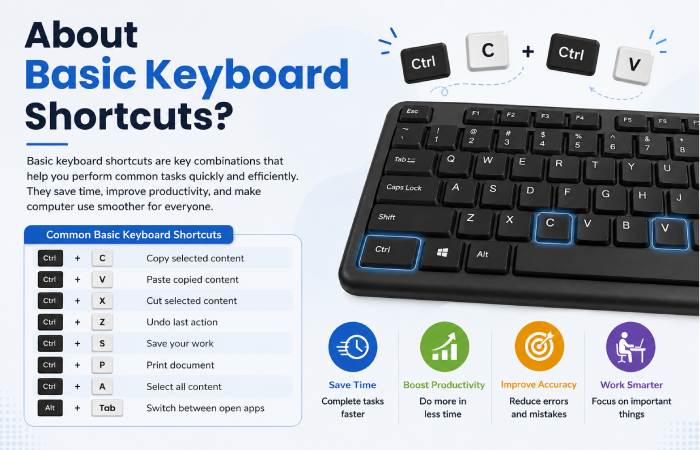
Easy Keyboard shortcuts are defined as a set of keys on the keyboard which perform specific tasks when they are pressed together. These shortcuts includes commands like “Copy”, “Paste”, “Save”, “Print”, “Find” and “Close Window”.
The use of simple shortcuts is for increasing speed, reducing repetitive actions and streamlining usage of a computer. In most applications for Windows, the Ctrl key is the control key whereas Mac systems utilize the Command key more predominantly.
Why Keyboard Shortcuts Matter
Keyboard shortcuts can save a surprising amount of time over the course of long usage. They can look small, and seemingly insignificant, however the time saved over extended periods can quickly become substantial.
Some practical benefits include:
- Faster document editing
- Easier multitasking
- Reduced hand movement
- Improved workflow consistency
- Better accessibility for power users
- More efficient browsing and file management
It’s the sort of thing that a daily routine office worker, student, developer or content creator becomes so accustomed to, their fingers know without the need for the conscious brain:
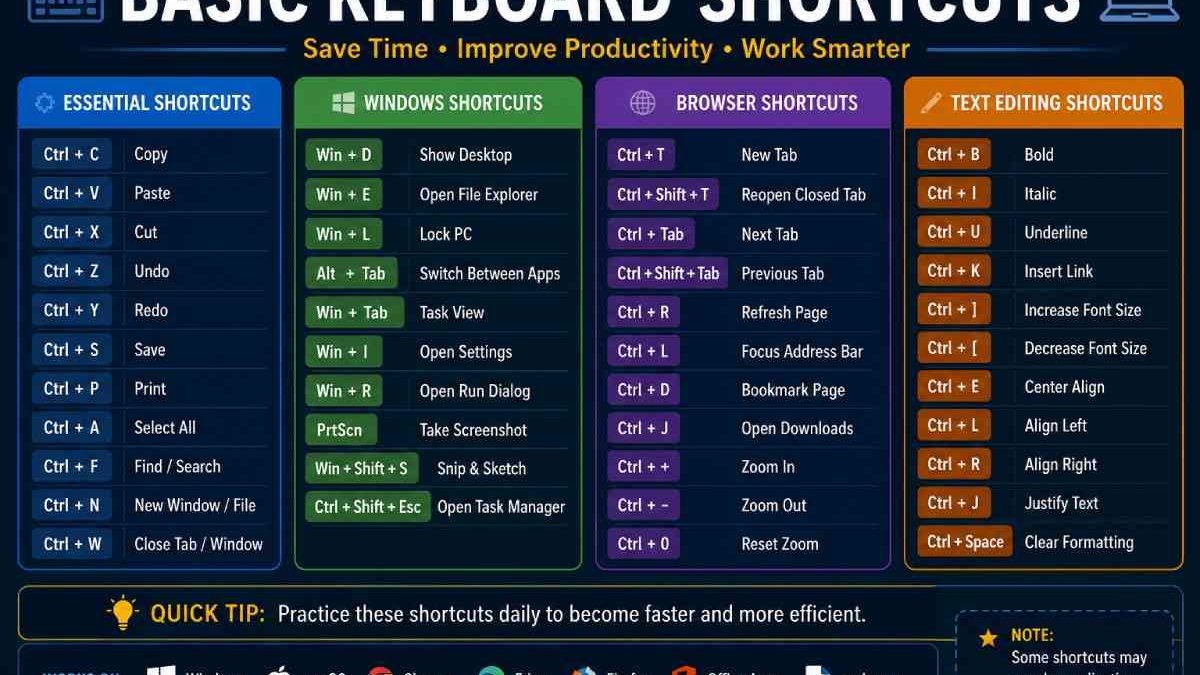
Common Basic Keyboard Shortcuts
Below are a selection of the most common Windows keyboard shortcuts.
| Shortcut | Function | Common Use Case |
| Ctrl + C | Copy | Copy text or files |
| Ctrl + V | Paste | Paste copied content |
| Ctrl + X | Cut | Move selected content |
| Ctrl + Z | Undo | Reverse recent action |
| Ctrl + Y | Redo | Restore undone action |
| Ctrl + S | Save | Save files quickly |
| Ctrl + P | Open print settings | |
| Ctrl + A | Select All | Highlight all content |
| Ctrl + F | Find | Search words in a page |
| Ctrl + N | New Window | Open a new file/window |
| Ctrl + W | Close Tab | Close browser tab |
| Alt + Tab | Switch Apps | Move between open programs |
| Windows + D | Show Desktop | Minimise all windows |
| Windows + L | Lock Computer | Secure your device |
| Ctrl + Shift + Esc | Task Manager | Open Task Manager directly |
Basic Keyboard Shortcuts for Internet Browsing
Easy web browsing nowadays is almost unimaginable if the users are not familiar with shortcuts navigation. Many browsers such as google chrome, Microsoft edge, and Mozilla firefox support many similar commands
| Shortcut | Browser Action |
| Ctrl + T | Open new tab |
| Ctrl + Shift + T | Reopen closed tab |
| Ctrl + Tab | Switch tabs |
| Ctrl + R | Refresh page |
| Ctrl + L | Highlight address bar |
| Ctrl + D | Bookmark page |
| Ctrl + Plus (+) | Zoom in |
| Ctrl + Minus (-) | Zoom out |
| Ctrl + J | Open downloads |
| Ctrl + H | Open history |
Using Keyboard Shortcuts During Office Work
Understanding shortcuts becomes easier when applied to a realistic workflow.
Typical Office Workflow Using Shortcuts
Step 1: Open a Document
Use:
- Ctrl + O to open files
- Ctrl + N to create a new document
Step 2: Edit Content
Use:
- Ctrl + C to copy
- Ctrl + X to cut
- Ctrl + V to paste
- Ctrl + Z to undo mistakes
Step 3: Navigate Efficiently
Use:
- Ctrl + F to search text
- Alt + Tab to switch between apps
Step 4: Save and Share
Use:
- Ctrl + S to save changes
- Ctrl + P if printing is required
Keyboard Shortcuts for Students
Laptops are often used by students for their assignments, presentations, online lessons, and researches. Being able to apply several shortcuts can help in the academic aspects.
| Shortcut | Student Benefit |
| Ctrl + S | Prevents accidental data loss |
| Ctrl + F | Quickly finds keywords in notes |
| Ctrl + C / Ctrl + V | Speeds up project work |
| Alt + Tab | Switches between lecture and notes |
| Windows + Shift + S | Takes screenshots |
| Ctrl + B | Makes text bold in documents |
Basic Keyboard Shortcuts vs Mouse Navigation
| Feature | Keyboard Shortcuts | Mouse Navigation |
| Speed | Faster for repeated tasks | Slower for repetitive actions |
| Precision | High once memorised | Easier for beginners |
| Productivity | Improves workflow efficiency | Suitable for visual navigation |
| Learning Curve | Requires practice | Easier initially |
| Multitasking | Better for advanced users | Less efficient |
Expectations Management: Learning Keyboard Shortcuts Takes Time
Many beginners, however, seem to expect that they will instantly know all of the shortcuts by rote learning but the learning process is usually much more natural and intuitive. Nearly all of us will naturally memorize a number of commands and shortcuts after using them a hundred times a day in our normal activities.
Another important factor is that, although many shortcuts work the same way, not all shortcuts apply to all applications. Many programs have their own specific shortcut commands in accordance to their design and whether it is compatible to the operating system or not.
Instead of learning thirty shortcuts at one sitting the learner can benefit greatly from just five to ten shortcuts first and add to it gradually.
A realistic approach includes:
- Practising daily shortcuts repeatedly
- Using printed reference charts initially
- Focusing on shortcuts related to your work style
- Learning shortcuts application-by-application
Over time, these combinations become automatic habits.
Keyboard Shortcuts for File and Folder Management
On a Mac, the redo command commonly uses Command + Shift + Z, although the shortcut may vary by application. Learn more in our guide to the redo shortcut key on Mac.
Managing files efficiently becomes easier with shortcut commands.
| Shortcut | Action |
| Windows + E | Open File Explorer |
| Ctrl + Shift + N | Create new folder |
| F2 | Rename selected file |
| Delete | Send file to Recycle Bin |
| Shift + Delete | Permanently delete file |
| Ctrl + Click | Select multiple items |
| Alt + Enter | Open file properties |
Such commands have wide application in office administration, content management and data organization work.
Common Mistakes Beginners Make
Because some new users press wrong keys, or use keys with invalid combination.
Common issues include:
- Pressing keys sequentially instead of together
- Forgetting application-specific limitations
- Using Mac shortcuts on Windows systems
- Accidentally activating browser functions
- Overusing shortcuts without understanding their purpose
These can be tried out in basic application windows like Notepad or Word to get some practice and confidence in a risk-free environment.
Are Keyboard Shortcuts Safe to Use?
Standard shortcuts are generally safe as they are integrated with the Operating Systems and standard programs you are accustomed to using. However, users still have to be very careful when downloading third party shortcut automation programs off untrustworthy sources.
Built-in shortcuts from:
- Microsoft Windows
- Google Chrome
- Microsoft Office
- Adobe software
- Linux systems
are considered reliable when used properly.
Who Should Learn Basic Keyboard Shortcuts?
If you want a broader explanation of redo commands across different devices and applications, explore our complete guide to the redo shortcut key in a computer.
Keyboard shortcuts are useful for almost every computer user, but they provide especially strong benefits for:
| User Type | Why Shortcuts Help |
| Students | Faster assignment handling |
| Office Employees | Better productivity |
| Writers | Quicker editing workflow |
| Developers | Efficient coding navigation |
| Designers | Faster software operations |
| Data Entry Operators | Reduced repetitive actions |
| Remote Workers | Improved multitasking |
Even casual users can benefit from learning basic navigation shortcuts.
Useful Tips for Remembering Shortcuts
Memorizing shortcuts becomes easier with practical repetition.
Helpful strategies include:
- Start with daily-use shortcuts first
- Keep a shortcut cheat sheet nearby
- Practice shortcuts during real tasks
- Use browser and office shortcuts consistently
- Learn shortcuts in small groups
Many users naturally develop shortcut memory after a few weeks of regular use.
Conclusion
Simple keyboard shortcuts is one of the most practical ways that you can make your work on the computer faster and more efficient. From the manipulation of documents to browsing the Internet, multitasking and handling files on your computer will be completed much quicker.
For the new users who find that they are mostly dependent on the mouse during normal use, I am sure that when they start to build up some regular shortcut key usage that their computer use will be even more productive over time and don’t try to remember them all, just remember to practice.
Whether you are studying for an education over the Internet, are at an office job working with documents, are looking through and organizing files on your computer or are just browsing the Internet these are some essential shortcuts for every computer user.
Fahmeena Begum is a technology writer at Digital Tech Book with 3+ years of experience. Her work covers apps, AI tools, computers, gadgets, smart technology and practical digital guides.
View Author Profile →Sameena Begum is a technology and digital content reviewer with 8 years of experience. Her review work focuses on clarity, factual presentation, readability and editorial consistency.
View Reviewer Profile →