


Fahmeena writes clear and practical guides covering technology, apps, AI tools, computers, gadgets and emerging digital trends.
View Author Profile →
Sameena reviews technology and digital content for clarity, factual presentation, readability, consistency and reader usefulness.
View Reviewer Profile →Table of Contents
Introduction
All computers follow a startup procedure before loading the OS fully. When you turn on your computer, the BIOS on the motherboard inspects all connected hardware and looks for a bootable OS. The order of inspecting the hardware is called the BIOS boot order.
BIOS boot order is vital when determining the procedure your PC follows at startup. Regardless of whether you’re running a business desktop computer, a business workstation, a laptop, or a gaming computer, your system requires instructions on where to find its OS files, or it may not start up properly.
Many users come across BIOS boot order while installing windows via USB drive, preparing to install linux, troubleshooting startup failure, or preparing to dual boot two OS. Traditional BIOS is now replaced by UEFI firmware on all modern computer but the name of BIOS boot order remains common practice.
Learning about BIOS boot priority helps computer users optimize startup speed, troubleshoot problems, and better manage their storage devices. Let’s get detailed info of BIOS boot order from how it works, what the role it plays, to how to modify the setting, and how to handle associated problem.
What is BIOS?
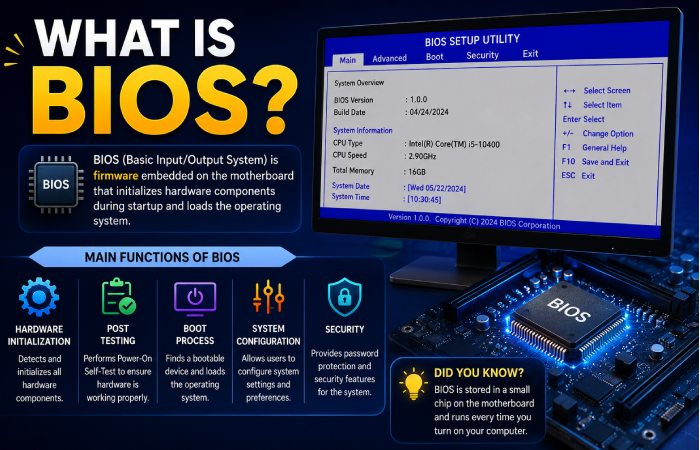
BIOS means Basic Input/Output System. BIOS is a firmware which is flashed onto the motherboard of a computer and is used for initializing the hardware when it is started. It acts as an interface between the computer hardware and operating system.
BIOS automatically gets activated when the user press power button on and verifies important hardware devices.
- Processor
- RAM
- Storage drives
- Keyboard
- Graphics card
- Cooling system
This initial hardware checking process is known as POST (Power-On Self-Test). Once POST completes successfully, the BIOS searches for a bootable operating system using the configured boot order.
A loose or damaged charging cable can also prevent a laptop from receiving enough power to start properly. Check the condition and compatibility of your HP laptop charging cord before proceeding with more advanced troubleshooting.
Main Functions of BIOS
| BIOS Function | Description |
| Hardware Initialization | Activates essential hardware components during startup |
| POST Testing | Checks hardware health and availability |
| Boot Device Detection | Searches for operating system files |
| Firmware Configuration | Allows users to change system settings |
| Security Controls | Supports passwords and boot protection |
Old BIOS have text-based interfaces whereas new UEFI uses menus with graphical interfaces and supports mouse input
What is BIOS Boot Order?
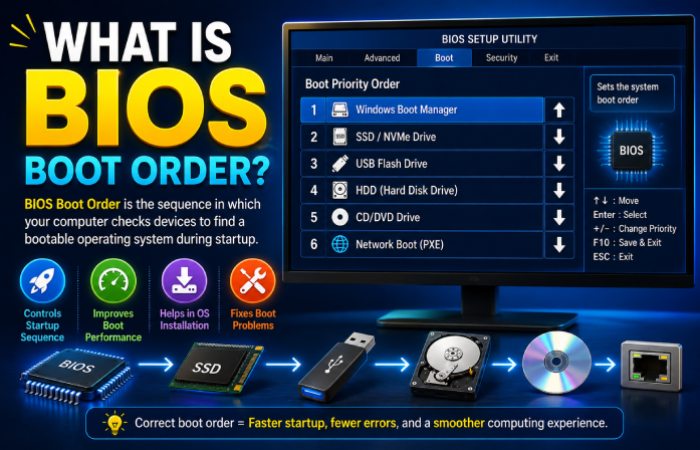
BIOS boot order refers to the sequence in which the firmware checks storage devices to locate a bootable operating system.
If a laptop will not start, check its power supply and battery before assuming the BIOS is responsible. For compatible HP Stream devices, understanding the correct HP Stream laptop charger can help you investigate basic power-related problems.
A computer may have multiple bootable devices connected simultaneously, including:
- SSDs
- Hard drives
- USB drives
- DVDs
- Network servers
BIOS boot order informs the computer which device should be checked for boot-up information.
For instance, if the boot sequence is as follows:
| Boot Priority | Device |
| First | USB Drive |
| Second | SSD |
| Third | HDD |
| Fourth | DVD Drive |
At this stage the system confirms if the files on the USB drive are bootable. If no OS exists on the USB it will then check the SSD then so on. If there was no boot order setting the system would not be aware where to get its startup files from.
How the Boot Process Works
The computer startup process occurs in several stages before the operating system loads successfully.
Power Initialization
Upon pressing the power button, current is supplied to the motherboard and CPU. Immediately, the CPU will begin to execute the BIOS instructions.
POST (Power-On Self-Test)
BIOS tests the integrity of some critical hardware components. When the hardware fails to pass tests, system might send error message or beep code.
Boot Device Detection
After hardware verification, BIOS checks storage devices according to the configured boot priority.
Boot loader Loading
After a bootable device is detected, BIOS loads the boot loader from it and then boots the operating system.
Operating System Startup
Windows, Linux, or another operating system loads system files into memory and launches the user environment.
Boot Process Summary
| Boot Stage | Purpose |
| Power Initialization | Activates motherboard and processor |
| POST Testing | Verifies hardware functionality |
| Device Scanning | Searches bootable storage devices |
| Bootloader Loading | Starts operating system loader |
| OS Startup | Launches Windows or Linux |
Why BIOS Boot Order Is Important
The BIOS boot order directly dictates how your computer boots. Setting the incorrect parameters may result in the OS not booting at all.
- Faster Startup: It is faster for your computer to boot if you set the boot sequence correctly because the computer searches the right drive first.
- Operating System Installation: When installing Windows or Linux using a USB drive, the USB device must appear before the SSD in boot priority.
- Troubleshooting Support: Boot order settings help users run recovery tools and startup repair utilities.
- Multi-Boot Configurations: Users running multiple operating systems rely heavily on proper boot priority settings.
- Enterprise Security: Many organizations disable external boot devices to prevent unauthorized access.
Different laptop models may offer slightly different BIOS interfaces and startup options. If you use a Dell device, this Dell Inspiron 15 5585 introduction can help you become more familiar with the laptop and its features.
Importance of BIOS Boot Order
| Scenario | Benefit |
| Windows Installation | Enables USB installer boot |
| Faster Startup | Reduces unnecessary scanning |
| System Recovery | Allows recovery media booting |
| Dual Boot Systems | Supports multiple operating systems |
| Enterprise Security | Restricts unauthorized USB access |
Common Types of Boot Devices
Before changing BIOS settings, identify your laptop model and review its hardware specifications. This information can help you follow the correct startup and troubleshooting instructions for your device, including a blue HP laptop.
Modern BIOS & UEFI systems can have multiple bootable devices.
- SSD (Solid State Drive): The commonest device for boot in these days. This is very speed and it can last.
- HDD (Hard Disk Drive): Traditional hard drives are slower but still widely used for storage.
- USB Flash Drives: USB drives are commonly used for operating system installation and recovery tools.
- Optical Drives: DVD and CD drives were previously the standard installation media.
- Network Boot (PXE): Used mainly in business environments where systems boot through network servers.
Common Boot Devices
| Device Type | Main Usage |
| SSD | Primary operating system |
| HDD | Secondary storage |
| USB Drive | Installation and recovery |
| DVD/CD | Legacy installation media |
| Network Boot | Enterprise deployment |
| External SSD | Portable operating systems |
BIOS vs UEFI Boot Order
Modern computers mainly use UEFI instead of traditional BIOS. However, both manage startup device priority.
- Traditional BIOS: Traditional BIOS is many years old, uses MBR partitioning.
- UEFI Firmware: UEFI replaced BIOS, offering faster boot, higher security, and support for GPT partitions.
BIOS vs UEFI Comparison
| Feature | BIOS | UEFI |
| Interface | Text-based | Graphical |
| Boot Speed | Slower | Faster |
| Disk Support | Up to 2TB | More than 2TB |
| Partition Type | MBR | GPT |
| Secure Boot | No | Yes |
| Mouse Support | Limited | Common |
UEFI is now standard in modern computers because it provides better compatibility and security features.
Default BIOS Boot Order in Computers
Manufacturers configure boot order differently depending on device type.
Most modern systems prioritize the internal SSD first.
Typical Default Boot Sequences
| Device Type | Default Boot Order |
| Modern Laptop | Windows Boot Manager → SSD → USB |
| Gaming PC | NVMe SSD → USB → HDD |
| Office Desktop | SSD → Network Boot → USB |
| Older Systems | DVD Drive → HDD → USB |
Incorrect boot configuration can slow startup or trigger boot errors.
How to Access BIOS Settings
Accessing BIOS requires pressing a specific key during startup.
Common BIOS Access Keys
| Brand | BIOS Key |
| ASUS | DEL or F2 |
| Dell | F2 |
| HP | ESC or F10 |
| Lenovo | F1 or F2 |
| Acer | DEL or F2 |
| MSI | DEL |
| Gigabyte | DEL |
| Samsung | F2 |
To access BIOS:
- Restart the computer.
- Press the BIOS key repeatedly.
- Wait for BIOS or UEFI interface to appear.
Modern Windows systems may also provide UEFI access through Advanced Startup settings.
How to Change BIOS Boot Order
Changing the BIOS boot order is relatively simple and usually takes only a few minutes.
- Enter BIOS or UEFI: Restart the computer and hit the BIOS key continuously during the startup.
- Open Boot Settings: Find the Boot tab or Boot Priority screen.
- Rearrange Devices: Move the desired boot device higher in the list.
- Save Changes: Press F10 or choose Save and Exit.
Example Boot Priority Setup
| Priority | Device |
| First | USB Drive |
| Second | SSD |
| Third | HDD |
| Fourth | Network Boot |
This configuration allows the system to boot from USB first.
How to Boot From USB
Booting from USB is one of the most common reasons users modify boot order.
Users boot from USB to:
- Install Windows
- Install Linux
- Run recovery software
- Update firmware
- Scan for malware
USB Boot Configuration
| Setting | Recommended Value |
| USB Boot | Enabled |
| Secure Boot | Disabled if necessary |
| Boot Mode | UEFI Preferred |
| Fast Boot | Disabled temporarily |
After installation finishes, the SSD should return to the first boot position.
Common BIOS Boot Order Errors
Incorrect boot settings can cause several startup problems.
- Operating System Not Found: The BIOS cannot locate valid boot files.
- No Bootable Device: The system fails to detect bootable storage.
- PXE Boot Error: The computer attempts network boot because local drives are unavailable.
- Boot Loop: The system repeatedly restarts without loading the operating system.
Common Boot Errors and Solutions
| Error Message | Possible Cause | Solution |
| No Bootable Device | Wrong boot priority | Reorder devices |
| Operating System Not Found | Missing bootloader | Repair OS files |
| PXE-E61 Error | Network boot enabled | Disable PXE boot |
| Reboot and Select Proper Boot Device | SSD not detected | Check storage connection |
| Secure Boot Violation | Unauthorized media | Adjust Secure Boot |
What Is Secure Boot?
Secure Boot is a UEFI security feature which prevents unwanted operating systems and malware from being run. Digital signatures are checked prior to any bootloader being allowed to be executed.
Advantages of Secure Boot
| Advantage | Description |
| Malware Protection | Blocks malicious boot files |
| Better Security | Prevents unauthorized systems |
| Enterprise Protection | Improves business security |
| Firmware Validation | Verifies trusted software |
Disadvantages of Secure Boot
| Disadvantage | Description |
| Linux Compatibility Issues | Some distributions require adjustments |
| Reduced Flexibility | Limits custom boot software |
| Recovery Complications | May block recovery tools |
Secure Boot is generally recommended for Windows systems.
BIOS Boot Order for Windows Installation
Choosing the right computer involves more than processor speed and graphics performance; reliable startup configuration and storage are important, too. If you’re planning a powerful editing setup, explore these best desktop PCs for video editing.
Installing Windows typically requires booting from a USB drive.
Recommended Installation Boot Sequence
| Priority | Device |
| First | USB Installer |
| Second | NVMe SSD |
| Third | HDD |
| Fourth | Network Boot |
Once installation completes, the SSD should become the first boot device again.
BIOS Boot Order for Linux Installation
Linux users frequently adjust BIOS settings during installation.
Some Linux distributions may require:
- Secure Boot disabled
- Legacy mode enabled
- USB boot priority changes
Linux Boot Setup
| Setting | Recommended Value |
| USB Boot | Enabled |
| Secure Boot | Disabled if necessary |
| UEFI Mode | Preferred |
| Legacy Support | Optional |
Modern Linux distributions usually work correctly with UEFI systems.
What Is a Boot Manager?
A boot manager is software responsible for loading operating systems after BIOS detects a bootable device.
Windows uses Windows Boot Manager, while Linux commonly uses GRUB.
Although RAM does not determine the BIOS boot-device priority, it plays an important role in overall system performance. Understanding laptop RAM can help you make informed decisions when upgrading or troubleshooting your computer.
Popular Boot Managers
| Boot Manager | Operating System |
| Windows Boot Manager | Windows |
| GRUB | Linux |
| rEFInd | Multi-OS systems |
| LILO | Older Linux systems |
The boot manager determines which operating system loads in dual-boot systems.
Legacy BIOS vs UEFI Mode
Many systems support both Legacy BIOS mode and UEFI mode.
- Legacy BIOS Mode: Designed for older hardware and operating systems.
- UEFI Mode: Provides better security, faster startup, and GPT support.
Legacy vs UEFI Comparison
| Feature | Legacy BIOS | UEFI |
| Startup Speed | Slower | Faster |
| Security | Basic | Advanced |
| Storage Support | MBR | GPT |
| Modern Compatibility | Limited | Excellent |
| Mouse Support | Rare | Common |
UEFI is recommended for modern hardware.
Fast Boot and BIOS Boot Order
Fast Boot reduces startup time by skipping certain hardware checks.
However, Fast Boot may make BIOS access difficult because the startup process becomes extremely fast.
Fast Boot Advantages and Disadvantages
| Advantages | Disadvantages |
| Faster startup | Harder BIOS access |
| Reduced loading time | USB devices may be ignored |
| Better user experience | Troubleshooting becomes harder |
Disabling Fast Boot temporarily may help during troubleshooting.
BIOS Boot Order in Gaming PCs
Gaming systems usually prioritize NVMe SSDs for maximum performance.
Gamers may temporarily change boot order to:
- Install operating systems
- Update BIOS firmware
- Run hardware diagnostics
- Benchmark storage devices
Recommended Gaming PC Boot Order
| Priority | Device |
| First | NVMe SSD |
| Second | SATA SSD |
| Third | USB |
| Fourth | HDD |
| Fifth | Network Boot |
Proper configuration ensures fast game loading and stable startup performance.
Enterprise Use of BIOS Boot Order
Large organizations often manage boot order centrally.
Network booting allows IT teams to install operating systems remotely.
Enterprise Boot Order Benefits
| Benefit | Description |
| Remote Deployment | Installs OS over network |
| Centralized Management | Easier administration |
| Security Control | Blocks unauthorized devices |
| Standardized Systems | Consistent configurations |
Enterprise environments commonly use PXE network boot technology.
BIOS Password and Security Features
BIOS passwords protect firmware settings from unauthorized changes.
Types of BIOS Passwords
| Password Type | Purpose |
| Setup Password | Restricts BIOS access |
| User Password | Required during startup |
| HDD Password | Protects storage drive |
| Administrator Password | Provides full control |
Combining BIOS passwords with Secure Boot improves system security significantly.
CMOS Battery and Boot Order Problems
The CMOS battery stores BIOS settings when the system is powered off.
If the CMOS battery fails, BIOS settings including boot order may reset repeatedly.
Signs of CMOS Battery Failure
| Symptom | Description |
| BIOS settings reset | Boot order disappears |
| Incorrect system time | Clock resets after shutdown |
| Startup warnings | CMOS checksum errors |
| Random boot issues | System forgets device priority |
Replacing the CMOS battery usually fixes these problems.
Can Incorrect Boot Order Damage a Computer?
Incorrect boot order generally does not damage hardware.
However, it can cause:
- Startup failures
- Endless boot loops
- Recovery mode problems
- Delayed boot times
Risks of Incorrect Boot Configuration
| Risk | Impact |
| Boot Failure | Operating system cannot load |
| Startup Delays | System scans multiple devices |
| Recovery Errors | Windows enters repair mode |
| Security Risks | Unauthorized USB booting |
Most boot order issues are easily fixable through BIOS settings.
Best Practices for BIOS Boot Order
Proper BIOS configuration improves performance, stability, and security.
Recommended BIOS Boot Practices
| Recommendation | Benefit |
| Keep SSD First | Faster startup |
| Disable PXE Boot | Reduces delays |
| Use UEFI Mode | Better compatibility |
| Enable Secure Boot | Improved protection |
| Update BIOS Firmware | Better hardware support |
Users should avoid unnecessary boot devices to improve startup efficiency.
FAQs
What is the purpose of BIOS boot order?
The BIOS boot order specifies the sequence in which the computer searches for the operating system files.
Can I boot from USB without changing BIOS?
Yes. Most of computers has the temp boot menu where you need to press like F11 or F12 key.
Is UEFI better than BIOS?
UEFI, in most cases, offers better speed, security, and can address more storage space.
Why is my SSD not appearing in BIOS?
Possible causes include loose connections, drive failure, incorrect BIOS settings, or outdated firmware.
Does changing boot order delete files?
No. Changing boot priority does not erase data.
Why does BIOS keep resetting?
A failing CMOS battery often causes BIOS settings to reset repeatedly.
Future of BIOS and Boot Systems
The future of computer firmware continues evolving rapidly.
Modern systems increasingly focus on:
- Faster NVMe initialization
- Improved firmware security
- Cloud-based recovery systems
- AI-assisted diagnostics
- Enhanced enterprise deployment
Although traditional BIOS is slowly disappearing, the concept of boot order remains essential because every computer still needs instructions on where to locate startup files.
Conclusion
Among other aspects of the computer startup process, the BIOS boot order is critical to it’s operation. BIOS (basic input/output system) is a firmware program, which loads when a computer starts up before an operating system is initialized, and determines the sequence in which devices are checked to find a bootable operating system.
This knowledge is useful to almost all computer users, whether setting up Windows, configuring Linux, troubleshooting start up problems or just looking to speed things up a bit. Even modern systems now utilize UEFI instead of a traditional BIOS, but the general process remains the same in the firmware checking each device in a specific order until a proper boot file is found.
Fahmeena Begum is a technology writer at Digital Tech Book with 3+ years of experience. Her work covers apps, AI tools, computers, gadgets, smart technology and practical digital guides.
View Author Profile →Sameena Begum is a technology and digital content reviewer with 8 years of experience. Her review work focuses on clarity, factual presentation, readability and editorial consistency.
View Reviewer Profile →