
Last Updated: May 25, 2026
Table of Contents
Introduction
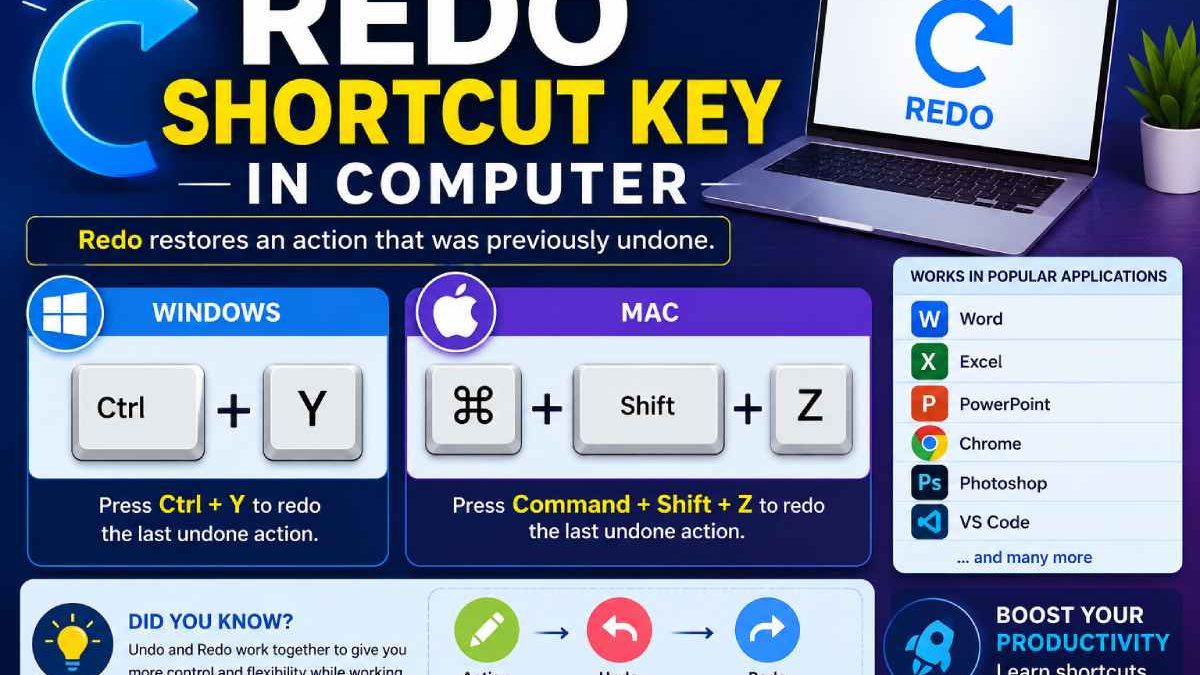
Amongst the common keyboard shortcuts used in a day to day computing environment, redo shortcut is one of the most significant ones. Whether it is writing reports, creating a spreadsheet, preparing a presentation, coding a program, or editing a design, redo shortcut can easily bring back the undone actions in order to help the users save time, increase efficiency and avoid having to repeat the steps manually.
Most of the computer users are well aware of the concept of an undo shortcut key but very few people fully comprehend what a redo shortcut is. It can simply be understood as the opposite of the undo shortcut. If an action has been undone accidentally, redo shortcut allows the users to reinstate the undone actions at one stroke.
Most computer users are aware of the redo shortcut key, which in Windows is usually Ctrl +Y and in Mac it usually uses Command + Shift +Z. Although Ctrl + Shift + Z is also a popular redo shortcut key on most of the applications as well.
Today, redo shortcut key can be seen supported on almost all the contemporary applications such as Microsoft Office, Google docs, MS paint, Adobe Photoshop, Visual Studio, web browsers and various online collaborative platforms. For students, office employees, programmers, designers, professionals and businessmen, these shortcuts can easily help boost their workflow at a quick rate.
| Platform | Redo Shortcut Key |
| Windows | Ctrl + Y |
| Mac | Command + Shift + Z |
| Linux | Ctrl + Shift + Z |
| Alternative Shortcut | Ctrl + Shift + Z |
What is the Redo Shortcut Key in Computer?
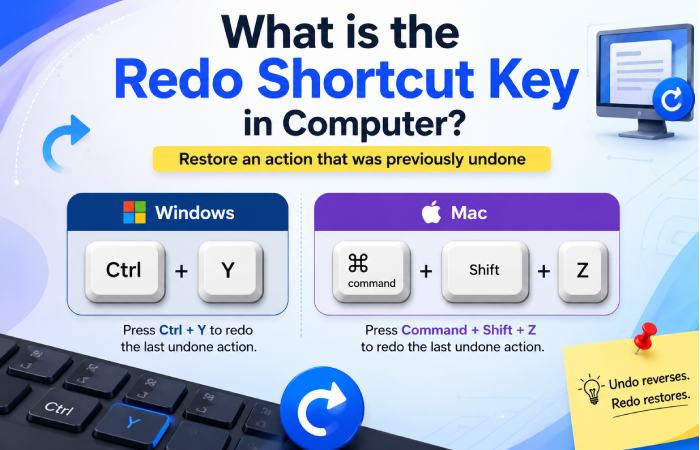
The redo shortcut is a command that allows you to revert or redo an undone action. Redo is particularly useful when you undo an action that you realize after undoing that you actually wanted, it then reverts it instantly.
The redo command works along with the undo command to provide a more forgiving editing experience. With both of these available, you can try new ideas without worry of permanence.
Consider the situation of writing a report in Microsoft Word and deleting a paragraph by mistake, you undo the deletion by using Ctrl Z to reapply the deleted paragraph. Then later you find that it is correct to delete the paragraph, but instead of deleting the text again you can just redo the command with Ctrl Y.
This simple process saves time and reduces repetitive work.
| Function | Purpose |
| Undo | Reverse the previous action |
| Redo | Restore the undone action |
| Repeat | Repeat the last completed command |
Importance of the Redo Shortcut Key
The redo shortcut is valuable as it increases editing flexibility, and also helps work run faster. All modern computer applications require changes, formatting, editing, and such-like, and without redo, the user would be forced to repeat any mistakes manually each time.
The use of the redo command is often crucial for professionals where work needs to be done quickly and accurately. Office workers, writers, accountants, programmers, designers and such users will use the undo command hundreds of times throughout the day.
The undo command also allows for a trial-and-error approach to the task at hand, with the user able to test various changes, formats or designs knowing that they can quickly recover them should it be necessary.
| Benefit | Explanation |
| Faster Workflow | Restores actions instantly |
| Better Productivity | Reduces manual repetition |
| Error Recovery | Corrects accidental undo actions |
| Improved Editing | Allows flexible changes |
| Time Saving | Minimizes repeated tasks |
Difference Between Undo and Redo
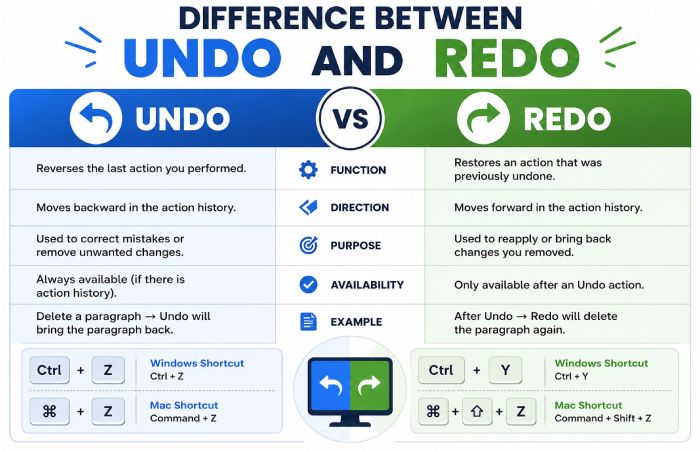
Many users tend to mix up the redo and undo shortcuts as the functions of the commands are related to each other, however they have the exact opposite function. Undo enables the user to revert to the previously performed task. Redo enables to redo the previous undo action that the user has done. Thus together they enable the user to rewind and forward the task that the user have performed in the history of the editing.
For example, if you type a sentence and then delete it accidentally:
- Pressing Ctrl + Z restores the sentence.
- Pressing Ctrl + Y removes it again.
This process creates editing flexibility and makes computer work safer.
| Feature | Undo | Redo |
| Main Function | Reverse action | Restore undone action |
| Windows Shortcut | Ctrl + Z | Ctrl + Y |
| Mac Shortcut | Command + Z | Command + Shift + Z |
| Purpose | Remove mistake | Recover undone work |
| Usage Frequency | Very High | High |
Redo Shortcut Key in Windows
In Windows, Ctrl + Y is predominantly the redo shortcut key. It is implemented in most of the MS programs, including numerous third party applications.
Windows users depend greatly on Ctrl + Y while editing a document, manipulating a spreadsheet, creating a presentation, surfing on the web, etc. The fact that MS Office programs are globally used all around the world have made the Ctrl + Y one of the most recognized keyboard shortcut for increasing productivity.
It is really easy to use this keyboard shortcut. The user must simply press Ctrl and Y keys together.
How to Use Ctrl + Y
If you accidentally undo an action using Ctrl + Z, pressing Ctrl + Y restores that action immediately.
For example:
- Delete a paragraph.
- Press Ctrl + Z to restore it.
- Press Ctrl + Y to remove it again.
This process works in most Windows applications.
| Windows Application | Redo Shortcut |
| Microsoft Word | Ctrl + Y |
| Excel | Ctrl + Y |
| PowerPoint | Ctrl + Y |
| Notepad | Ctrl + Y |
| Outlook | Ctrl + Y |
| Paint | Ctrl + Y |
Redo Shortcut Key in Mac
Unlike a Windows computer, a Mac will perform redo with the key combination, Command + Shift + Z.
Apple uses their own shortcut configuration for specific tasks in the operating system and its respective applications. As such, Mac users need to memorize alternate shortcuts when needing to perform redo.
Undo for Mac supports redo in applications including: Pages, Keynote, Safari, Final Cut Pro, Adobe Photoshop, among others.
The redo shortcut in Mac is often used by people during writing documents, producing multimedia, writing code and design and other creative tasks.
| Mac Application | Redo Shortcut |
| Pages | Command + Shift + Z |
| Keynote | Command + Shift + Z |
| Safari | Command + Shift + Z |
| Photoshop | Command + Shift + Z |
| Final Cut Pro | Command + Shift + Z |
The Mac redo system functions similarly to Windows. After undoing an action, users can restore it using the redo shortcut.
Redo Shortcut Key in Microsoft Word
MS Word is the application where redo command is one of the most important commands used. A writer, a student, a blogger, an office worker-all have to change the text, formatting, and layouts of their documents many times.
The redo shortcuts work best when re-establishing formatting changes (removed by undo), inserted text, modified alignments, or changed styles.
For instance, if undo removes the bold formatting from a heading; redo would instantly bring it back.
| Task in Word | Benefit of Redo |
| Restore Deleted Text | Recover removed paragraphs |
| Recover Formatting | Restore fonts and styles |
| Reapply Alignment | Maintain document layout |
| Restore Tables | Recover table formatting |
Microsoft Word also supports multi-level undo and redo, meaning users can reverse and restore multiple actions in sequence.
Redo Shortcut Key in Microsoft Excel
Excel users are commonly customed to formulas, calculations, tables and data formats. Redo commands are most helpful when editing spreadsheet data as errors made by users can easily affect a considerable portion of the workbook. Redo shortcuts restore formulas, formatting, borders and cell contents in seconds. For instance, if a user accidentally deleted a formula and reversed this action by undoing; redo could potentially remove the formula once more.
| Excel Activity | Role of Redo |
| Formula Editing | Restore calculations |
| Cell Formatting | Recover colors and fonts |
| Data Entry | Reapply removed content |
| Table Design | Restore formatting |
Excel professionals use redo shortcuts regularly because spreadsheets require constant editing and adjustments.
Redo Shortcut Key in PowerPoint
PowerPoint presentations may utilize transitions, animation, formatting and the ordering of slides.Redo shortcuts allow a presenter to revert immediately any alterations.
When altering a presentation it is very common for users to try out a range of formatting and layout options. Theredo function facilitates this through rapid reverting and redeposit.
| PowerPoint Task | Benefit |
| Recover Slide Changes | Restore deleted elements |
| Reapply Animations | Restore effects |
| Restore Formatting | Maintain presentation design |
| Slide Editing | Faster workflow |
Redo Shortcut Key in Google Docs
Google Docs can redo deleted items, reapply formatting or reapply collaboration editing in both Windows using Ctrl + Y or Ctrl + Shift + Z and on Mac with Command + Shift + Z. Since Google Docs is based in the cloud, editing in real time with other users, the redo shortcut is a critical feature
| Platform | Google Docs Redo Shortcut |
| Windows | Ctrl + Y |
| Windows Alternative | Ctrl + Shift + Z |
| Mac | Command + Shift + Z |
Google Docs users benefit greatly from redo functionality because collaborative editing often leads to accidental changes.
Redo Shortcut Key in Browsers
Modern web browsers support redo commands during text editing and form filling. Users often type messages, comments, or forms online, making redo functionality valuable.
If text is removed accidentally while typing in a browser, redo can restore or reverse actions instantly.
| Browser | Redo Shortcut |
| Google Chrome | Ctrl + Shift + Z |
| Mozilla Firefox | Ctrl + Shift +Z |
| Microsoft Edge | Ctrl + Shift + Z |
| Safari | Command + Shift + Z |
Browser-based editors like Gmail, Google Docs, and online CMS platforms depend heavily on undo and redo functionality.
Redo Shortcut Key in Adobe Photoshop
Adobe Photoshop uses Ctrl + Shift + Z for redo operations instead of Ctrl + Y in many versions.
Graphic designers constantly make adjustments to layers, colors, filters, and brush strokes. Redo commands help them restore editing actions without repeating work manually.
| Photoshop Function | Shortcut |
| Undo | Ctrl + Z |
| Step Backward | Alt + Ctrl + Z |
| Step Forward/Redo | Ctrl + Shift + Z |
Photoshop users may perform hundreds of undo and redo actions during a single design session.
Redo Shortcut Key in Coding Software
Programmers and developers frequently edit large sections of code. Redo shortcuts help restore removed code, formatting, or syntax instantly.
Coding editors support redo functionality because software development requires continuous editing and testing.
| Coding Software | Redo Shortcut |
| VS Code | Ctrl + Shift + Z |
| Sublime Text | Ctrl + Y |
| Notepad++ | Ctrl + Y |
| IntelliJ IDEA | Ctrl + Shift + Z |
| PyCharm | Ctrl + Shift + Z |
Developers depend on redo commands to manage coding mistakes efficiently.
History of Undo and Redo Commands
This is a well-loved feature, it only started getting popular in the 1980’s and 1990’s with the growing of GUIs in computers. Early computer systems were very rigid when it came to editing and hard to fix errors, however it grew and modern software developed multi-level undo/redo systems. In this type of system it stores a long list of editing histories that can be scrolled back and forth.
| Era | Development |
| Early Computing | Limited editing recovery |
| GUI Era | Undo/redo introduced |
| Modern Applications | Multi-level editing history |
| Cloud Software | Real-time collaborative recovery |
Today, redo functionality is considered a standard feature in nearly every professional application.
How Redo Works Internally
Software most often saves a history of all the actions made. When the user performs an action, the software stores it on memory for a little time. If the user makes undo, the software executes the last action in reverse order. When redo is pressed, the software executes the stored action again. Most of the time, stacks are used for this.
| Step | Internal Process |
| Action Performed | System records change |
| Undo Command | Action reversed |
| Redo Command | Action restored |
| New Action | History updates |
Common Problems with Redo Shortcut Keys
Sometimes redo shortcuts stop working properly. This may happen because of software limitations, keyboard issues, or application conflicts.
Users often encounter redo problems after software updates or custom keyboard modifications.
| Problem | Possible Cause |
| Ctrl + Y Not Working | Application limitation |
| Shortcut Conflict | Another shortcut override |
| Keyboard Issue | Damaged key |
| No Redo History | Nothing available to redo |
| Software Bug | Program malfunction |
How to Fix Redo Shortcut Problems
Redo issues can usually be fixed with simple troubleshooting steps. Restarting the application or checking keyboard settings often resolves the problem quickly.
Users should also verify whether the software supports redo commands because some lightweight applications offer limited editing history.
| Issue | Solution |
| Shortcut Not Working | Restart software |
| Keyboard Failure | Test another keyboard |
| Software Conflict | Reset shortcuts |
| App Freeze | Update application |
| Mac Shortcut Issue | Check keyboard layout |
Multi-Level Undo and Redo
Modern applications support multi-level undo and redo systems. This means users can reverse or restore multiple actions sequentially.
For example:
- Type text.
- Change font style.
- Insert image.
- Delete paragraph.
Users can undo all these actions step-by-step and then redo them again in sequence.
| Feature | Benefit |
| Multi-Level Undo | Reverse several actions |
| Multi-Level Redo | Restore multiple edits |
| Editing History | Better workflow control |
This advanced functionality is essential in professional software environments.
Importance of Keyboard Shortcuts in Productivity
Keyboard shortcuts increase your efficiency because it requires less usage of the mouse. You get your work done more quickly, and remain centered on your work.
Redo shortcuts are one tool in the productivity system consisting of shortcuts such as cut, copy, paste, save, and undo.
Regular keyboard users will tend to accomplish tasks more quickly than will a solely mouse-based user. Learning these shortcuts can improve workflow efficiency dramatically.
| Shortcut | Function |
| Ctrl + C | Copy |
| Ctrl + V | Paste |
| Ctrl + X | Cut |
| Ctrl + Z | Undo |
| Ctrl + Y | Redo |
| Ctrl + S | Save |
Redo Shortcut Key for Students
Students frequently use redo commands while preparing assignments, presentations, projects, and notes. Editing mistakes are common during academic work, making redo shortcuts extremely useful.
Redo functionality allows students to experiment with formatting and content changes confidently. Students who learn keyboard shortcuts early often become more efficient computer users.
| Student Activity | Role of Redo |
| Assignment Writing | Restore formatting |
| Presentation Creation | Recover slide edits |
| Online Learning | Restore removed text |
| Project Editing | Reapply changes |
Redo Shortcut Key for Office Professionals
Office workers spend a great deal of time reviewing spreadsheets, reports, e-mails and presentations. Redo shortcuts will greatly increase workplace efficiency.
Redo commands reduce editing interruptions and allow employees to recover actions instantly.
| Office Task | Benefit of Redo |
| Report Editing | Recover changes |
| Spreadsheet Management | Restore formulas |
| Email Drafting | Restore deleted content |
| Presentation Design | Reapply formatting |
FAQs
What is the redo shortcut key in computer?
Ctrl + Y is the shortcut for redo on Windows, on a Mac it is Command + Shift + Z.
Is Ctrl + Shift + Z a redo shortcut too?
Yes, most applications use Ctrl + Shift + Z for redo.
What is the redo shortcut in MS Word?
MS Word uses Ctrl + Y in Windows and Command + Shift + Z on Mac.
Why is redo important?
Redo improves productivity and allows users to recover undone actions quickly.
Can redo restore multiple actions?
Yes, modern applications support multi-level redo systems.
Conclusion
One of the most useful shortcuts on computer for us modern people is the redo’ shortcut key. Working in documents, spreadsheets, programming, presentation, or design, the redo command assist users retrieve immediately the erased action.
For Windows users, the primary shortcut is Ctrl + Y; while for Mac, it is Command + Shift + Z. Many professional applications support Ctrl + Shift + Z for redo shortcut alternatively.
With the help of redo’ function, users will not waste their time and will enhance the ease to edit with the improvement of workflow. Students, employees, programmers, designers are all beneficiaries of keyboard shortcuts since they minimize the trivial repeated jobs with enhanced productivity.
With the repeated practice of redo shortcuts, we will be faster, more accurate, more efficient for all tasks we perform in the computer.